Every deck, run from anywhere
Bring in Google Slides, Canva, PowerPoint, PDF or images. Then present with speaker notes, draw on the live slide, or run it from your phone.

Sign in and pick the deck. Google Slides keeps its animations and videos.
Drag in a .pptx. Animations and transitions play as they do in PowerPoint.
Drag them in, and each page or picture becomes a slide.
Notes, what's next, and a timer
Made for the pastor. Open the speaker view on a laptop or tablet at the pulpit to see the live slide, the ones either side, your notes and a timer, and move the slides yourself. Notes come in from Google Slides and PowerPoint, and you can edit them right there.
- Arrow keys and Page Up/Down move the slides, so most clickers just work
- Jump to any slide from the overview
Point it out, on the big screen
Circle a word or underline a verse while you speak. Pick the pencil, highlighter or laser, and your marks show up on the big screen straight away.
Run it from your phone
Open the same project on your phone and tap a slide to put it up. The preacher can run their own slides, or a volunteer can from the front row.
Collect slides with a link
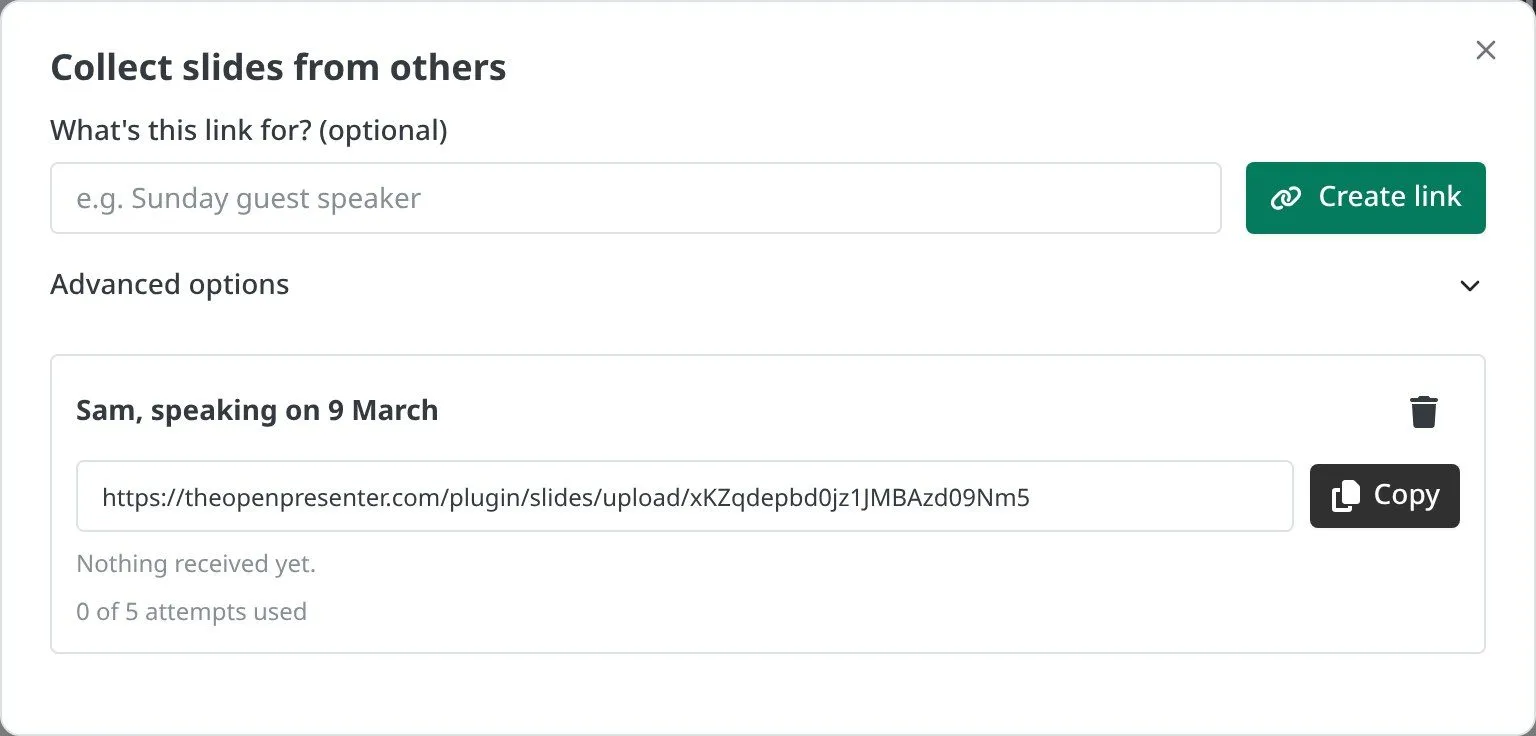
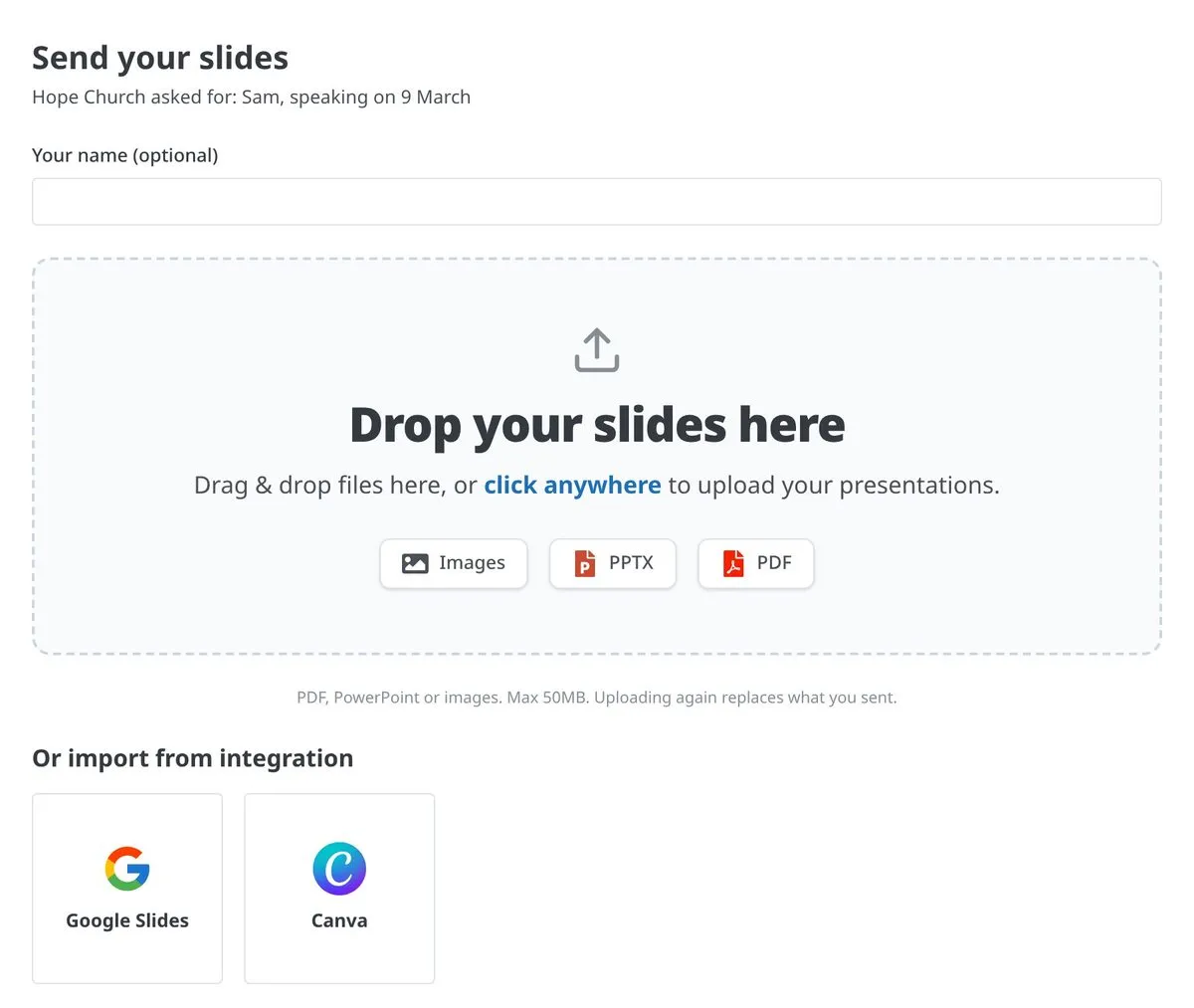
Send your guest speaker a link. They upload their slides, or pick them from their own Google Slides or Canva, and the slides land in your project. No account needed on their side.
Mix decks in one set
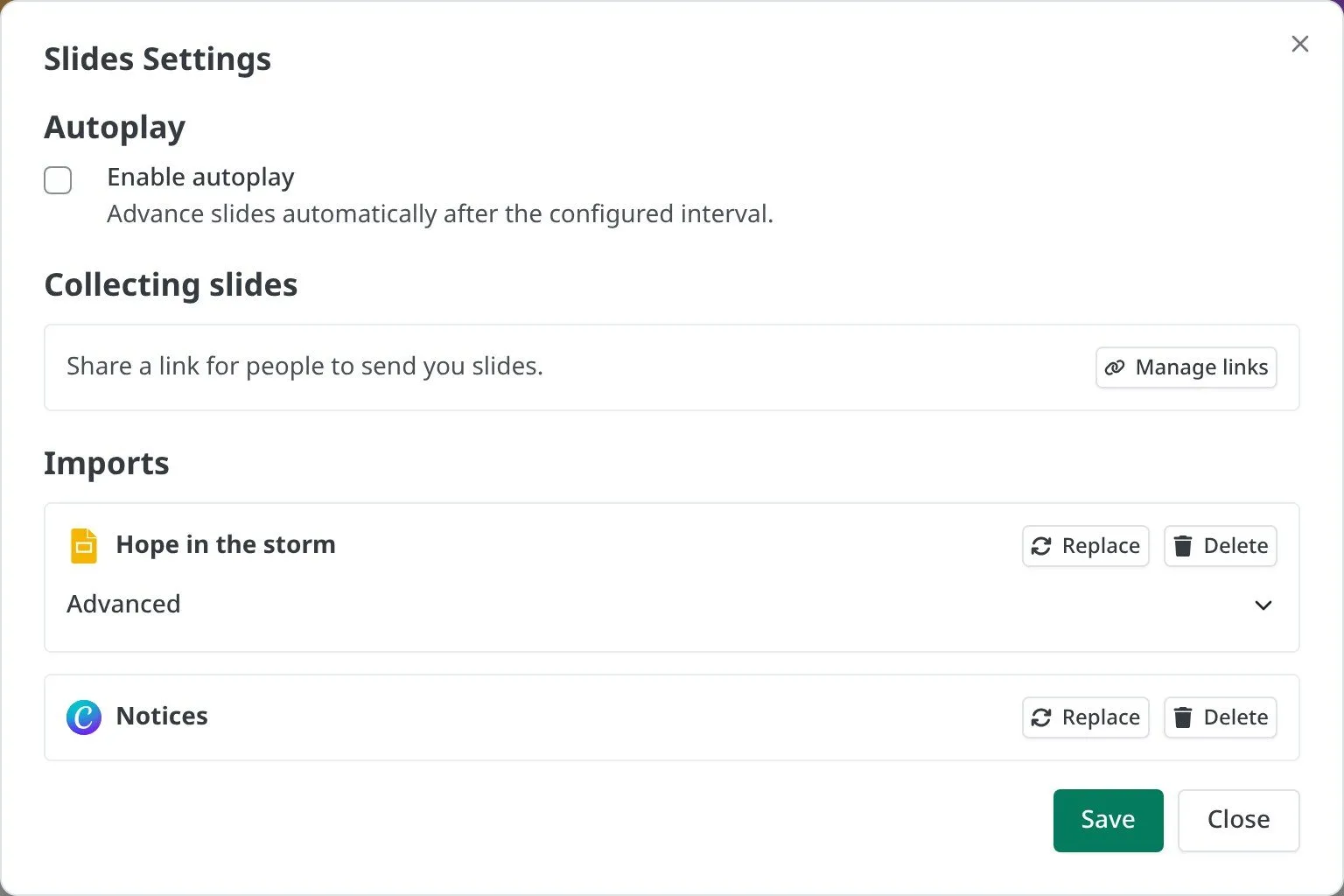
Put the notices from Canva and the sermon from Google Slides in the same set, and move through them as one. Each deck keeps how it plays best.
Questions
Will my clicker work? +
Most clickers will. They send the arrow or Page Up/Down keys, and those move the slides.
Can the stage screen show what's next? +
Yes. Give a screen the confidence monitor look, and it shows the live slide, the next one, the slide number and your notes.
Can slides play on their own, like a loop before the service? +
Yes. Turn on autoplay in the slide settings and choose how many seconds each slide stays up.
Can I make slides in TheOpenPresenter? +
Yes. Start from a blank slide or a layout, like a title, a quote or two columns, and add your own text and images.
Which files can I bring in? +
PowerPoint (.pptx and .ppt), PDF and images, plus Google Slides and Canva straight from your account.
Put this Sunday's slides up
Start free.
Bring in your deck and run it from your laptop or phone. No card needed.