 Canva
Your Google Slides and Canva, directly imported
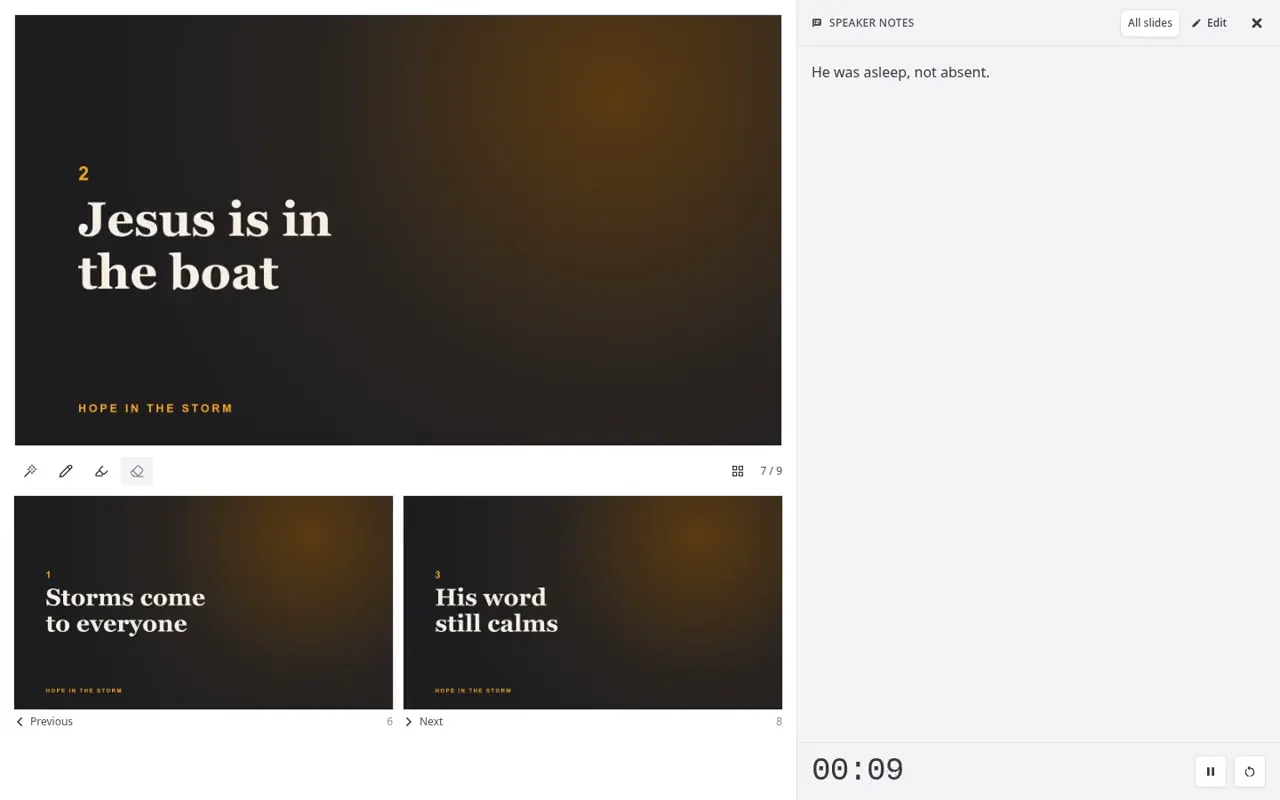
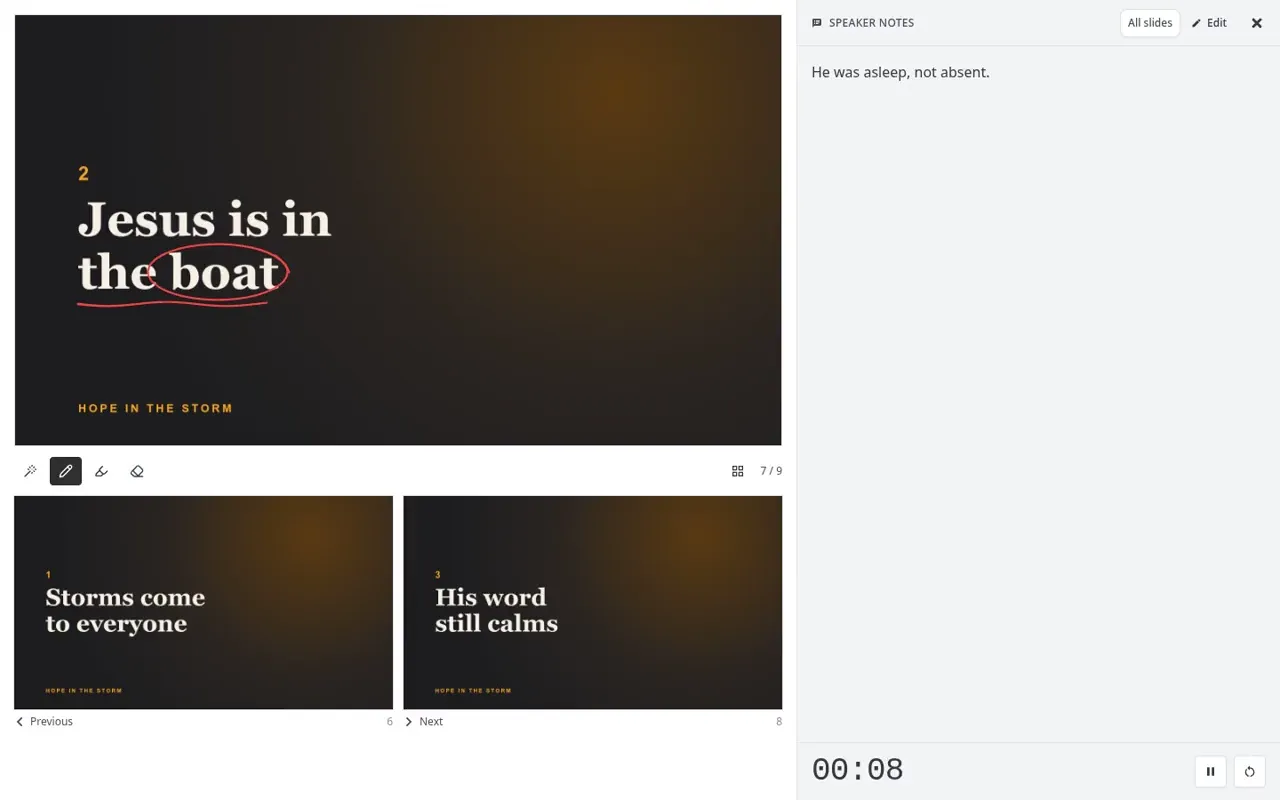
Bring in the sermon deck and this week's notices in a couple of clicks. Then run them with speaker notes, draw on the live slide, or use your phone as the remote.
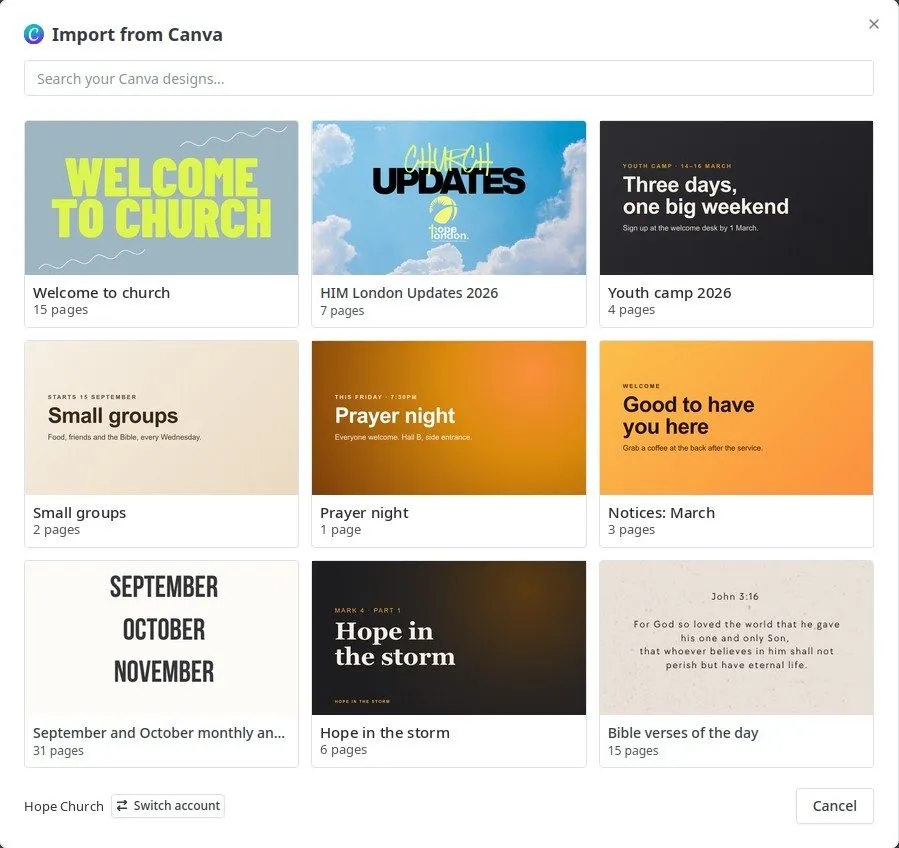
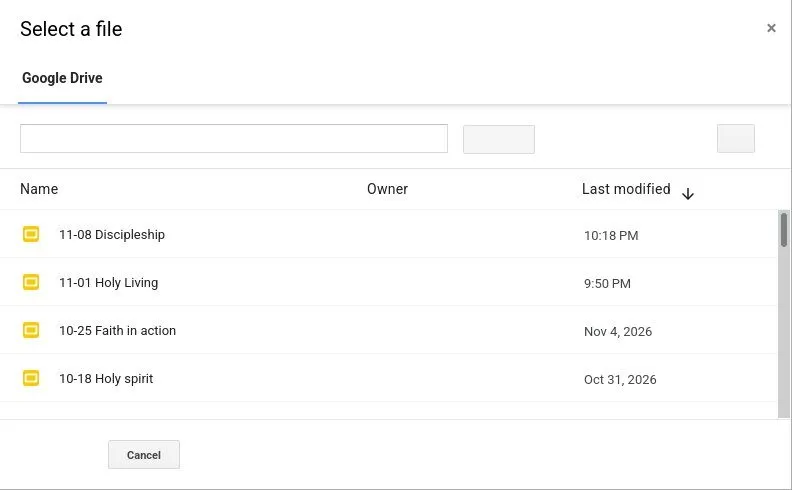
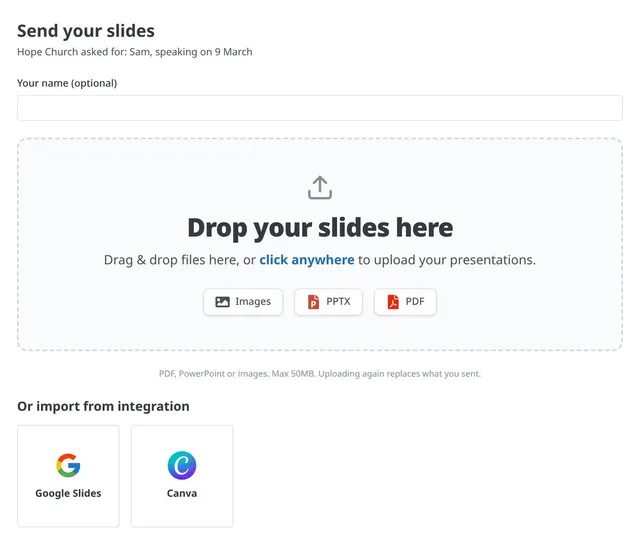
Straight from Google Slides or Canva
Sign in to Google or Canva and pick the deck. It stays connected, so next week you just pick again.
- Google Slides keeps its animations, transitions and videos
- Canva designs come in as one slide per page
- Or drag in PowerPoint, PDF or images
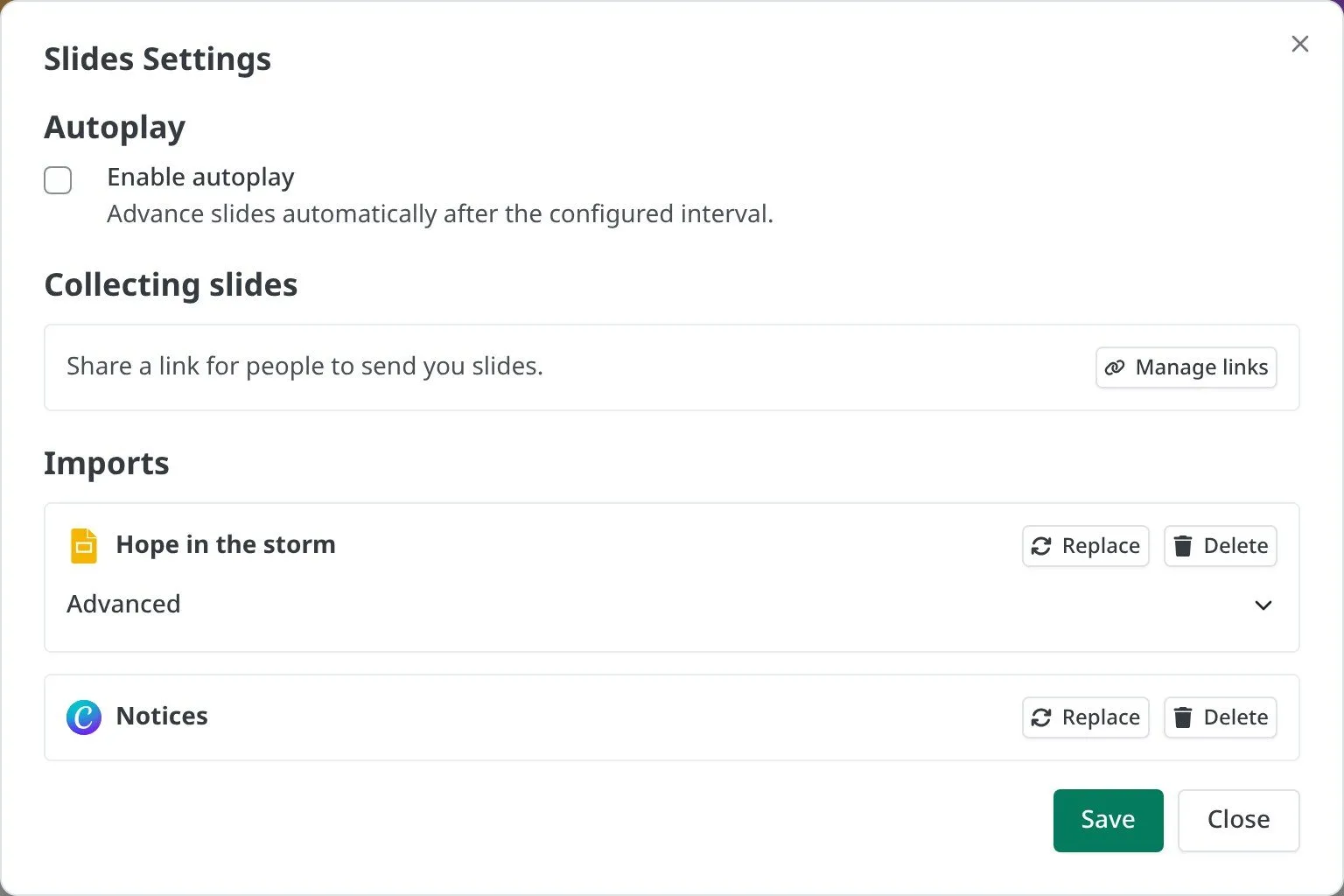
- Mix decks in one set: notices from Canva, the sermon from Google Slides
How each one plays
- Animations and transitions, step by step
- YouTube videos, and Drive videos once you give access
- Speaker notes
Canva - Every page of the design becomes a slide
- Shared with your whole team once connected
Not yet: Animations, videos and notes. Pages come in as still images for now.
Changed the deck? Replace it
Edited the slides on Saturday night? Open the settings, press Replace, and pick the deck again. The new version takes the old one's place in the set.
Run it like any slides
Once it's in, every deck gets the same tools.
Questions
Does it stay in sync with Google Slides? +
Not automatically. When you change the deck, open the slide settings and press Replace to bring in the new version.
Can I pick a PowerPoint file from Google Drive? +
Not from the Google Slides picker, which only lists Google Slides files. Download the .pptx and drag it in instead.
Do I need a paid Canva account? +
No, but designs that use premium elements you haven't paid for can't be exported from Canva.
Can a guest speaker send their Google Slides or Canva? +
Yes. Send them an upload link, and they can pick from their own Google Slides or Canva, or upload a file.
Put this Sunday's slides up
Start free.
Import your Google Slides or Canva deck and run it from your laptop or phone. No card needed.