Your PowerPoint, animations and all
Many church presentation apps turn your PowerPoint into pictures. Here, the animations, transitions and embedded videos play as they do in PowerPoint, with nothing to install.
- 1 Drag in your .pptx
Or a .ppt. Fonts, SmartArt and charts look just as they do in PowerPoint.
- 2 Present, click by click
Each click plays the next animation, like in PowerPoint. Going back plays the transition in reverse.
- 3 No internet needed on the day
Importing needs a connection. Once it's in, the show runs without one.
Your animations, actually playing
Bring a PowerPoint into most church software and you usually get a picture of each slide. The ones that keep the animations tend to need PowerPoint installed on the presenting computer.
Imported as pictures
- Animated slides show up already finished
- Transitions and animations are lost
- Embedded videos are left behind
- Or PowerPoint has to be installed to play it
With TheOpenPresenter
- Animations play in, one click at a time
- Transitions play, and reverse when you go back
- Embedded videos play, in step on every screen
- Nothing to install, and it runs offline once it's in
What comes across from PowerPoint
And the few places it differs.
Animations
- On click, with previous, after previous, delays and repeats
- Text animated by paragraph, word or letter
- Fade, Fly In, Wipe, Zoom, Float, Grow & Turn and about 30 more entrances and exits
- Grow/Shrink, Spin, Pulse, Teeter and other emphasis effects
- Motion paths
Not quite: Colour changes fade to the end colour. Blinds, Checkerboard and Dissolve are close, not exact.
Transitions
- Fade, Push, Cover, Wipe, Split, Flip, Cube and more, with their speed and direction
- Played in reverse when you go back
Not quite: Morph moves, resizes and turns objects, but a square won't bend into a circle. 3D transitions like Vortex play as a fade.
Video
- Embedded video, with its volume, trimming and looping
- Starts on its animation step or when the slide opens
- In step on every screen
Not quite: You can't pause or seek a video from the remote.
Presenting
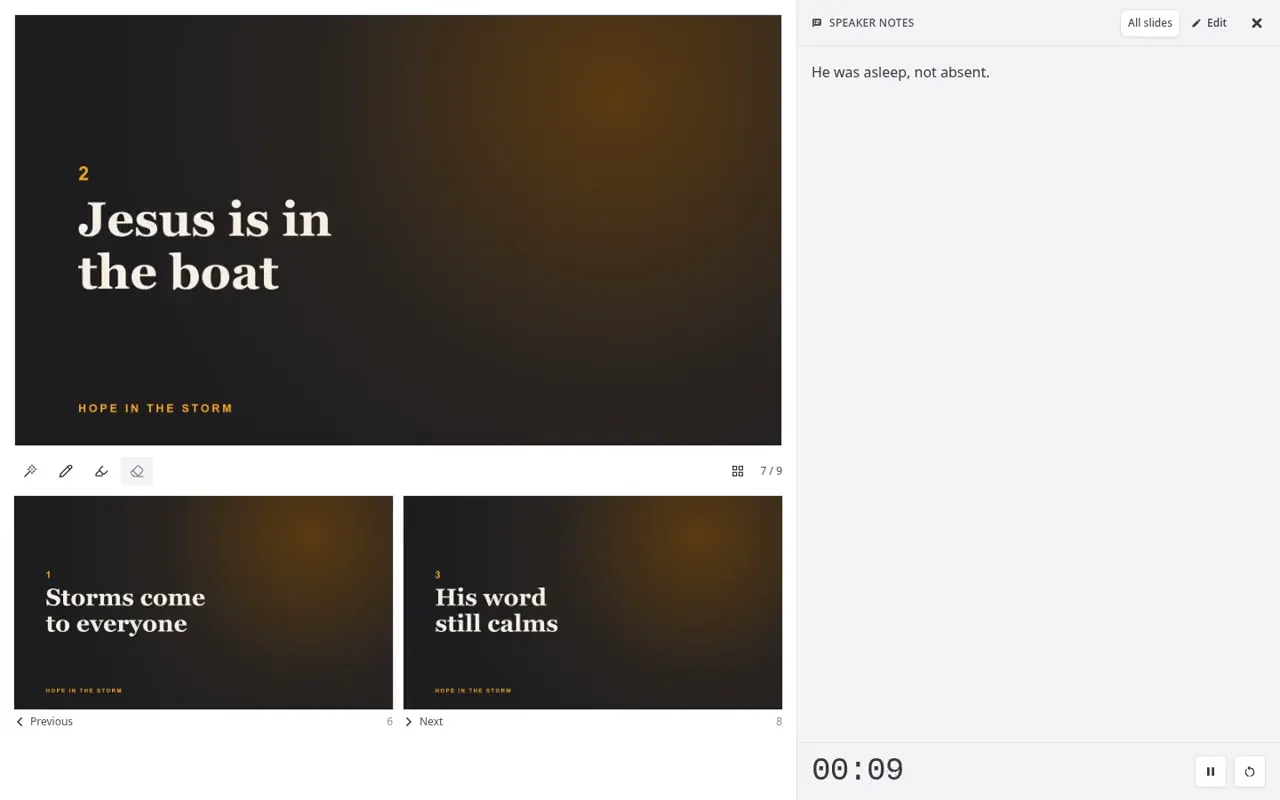
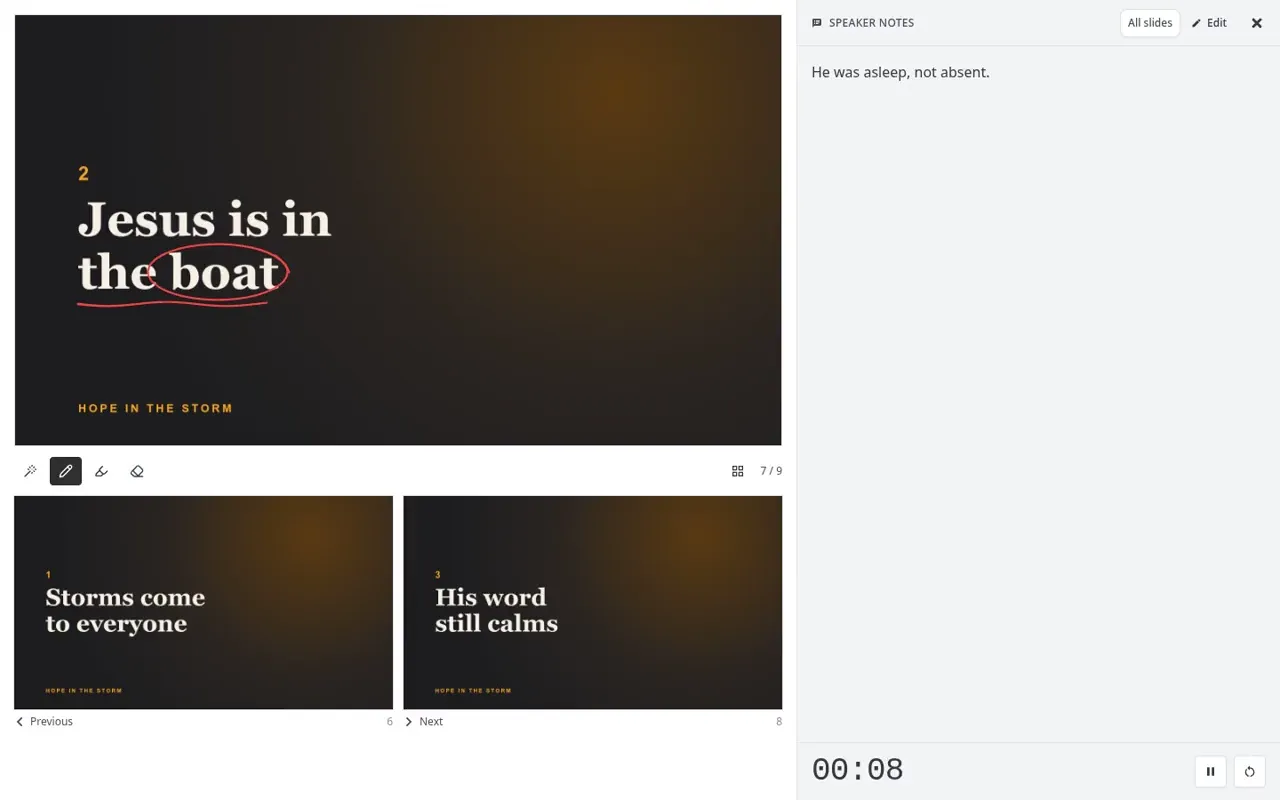
- Speaker notes, including on decks with hidden slides
- Hidden slides left out, like a PowerPoint show
- A preview of the next animation in speaker view
- Jump to any slide, with its animations already played
Not quite: Rehearsed timings, custom shows and links or action buttons don't work.
Run it like any slides
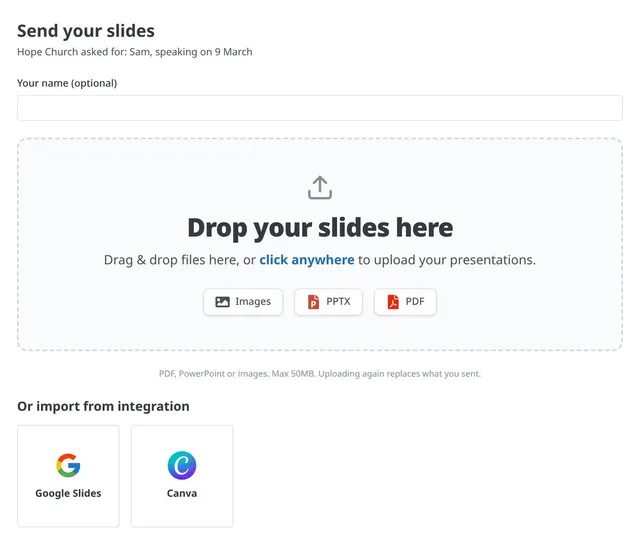
Once it's in, every deck gets the same tools.
Questions
Do I need the internet? +
Only while you bring the deck in. After that, the show runs offline.
Will my fonts and layouts look right? +
Yes. Fonts, SmartArt, charts and effects come across, so it looks as it does in PowerPoint.
What doesn't work? +
Triggers (start when a shape is clicked), links and action buttons, custom shows, transition sounds, background music and rehearsed timings.
What if a deck won't come in properly? +
If its animations can't be brought across, the deck comes in as still images, one per slide. Files that can't be opened at all are turned away straight away, with a message saying why.
Can I use Keynote? +
Not directly. Export it from Keynote as PowerPoint or PDF, then drag that in.
Bring your PowerPoint
Start free.
Drag in your deck and run it from your laptop or phone. No card needed.