No laptop, no cables, no fuss. With a small TV stick plugged into
your screen, TheOpenPresenter runs straight on the TV. For small
gatherings, whoever is leading just brings the stick, plugs it in,
and controls everything from their phone or computer.
Before you start
This guide assumes you already have an organization and a project set up.
If you don't yet, follow our guide on using the online version for church
first. You'll also need a TV or projector with a spare HDMI port and Wi-Fi
in the room.
1
Get a compatible TV stick
A TV stick is a small device that plugs into your TV's HDMI port and
turns any screen into a smart TV. TheOpenPresenter runs as an app on
the stick, so this is all you need to carry to your gathering. Any of
the following will work:
Amazon Fire TV (Fire TV
Stick)
Google TV (such as the
Chromecast with Google TV)
Android TV devices
Check the up-to-date list of supported devices on our download page. We're adding more platforms (like Samsung TVs) over time, so it's
worth a look before you buy.
Tip:
Set the stick up once at home, connect it to your church's Wi-Fi, and
it's ready to go. On the day, you only need to plug it in and switch the
TV to the right HDMI input.
2
Install the TheOpenPresenter app
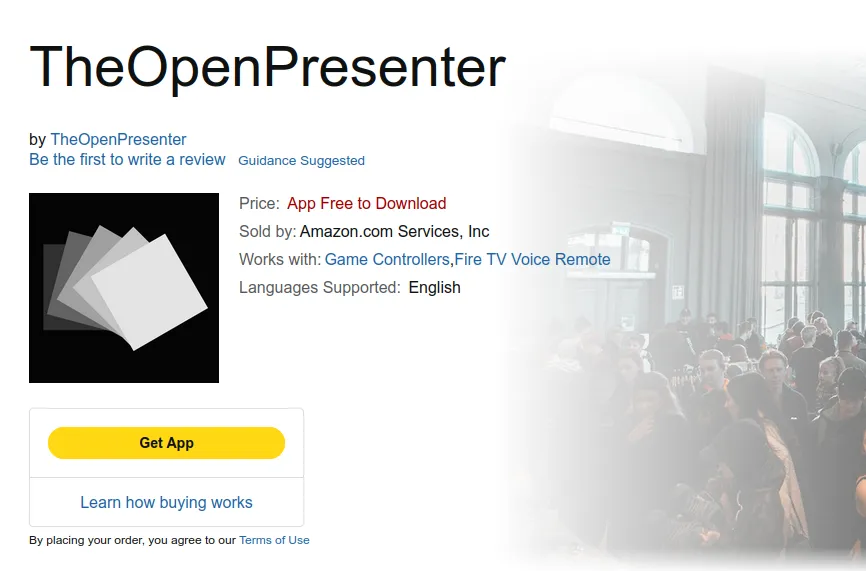
On the TV stick, open its app store and search for TheOpenPresenter.
Open the app store on your device (the Amazon Appstore on Fire TV,
or Google Play on Google TV
and Android TV).
Search for TheOpenPresenter and select
it.
Choose Get App (or Install), then open it. The
app is free to download.
Tip:
Can't find the app on your device? Double-check that your device is on
our download page, which always links to the right store for each platform.
3
Scan the QR code to log in
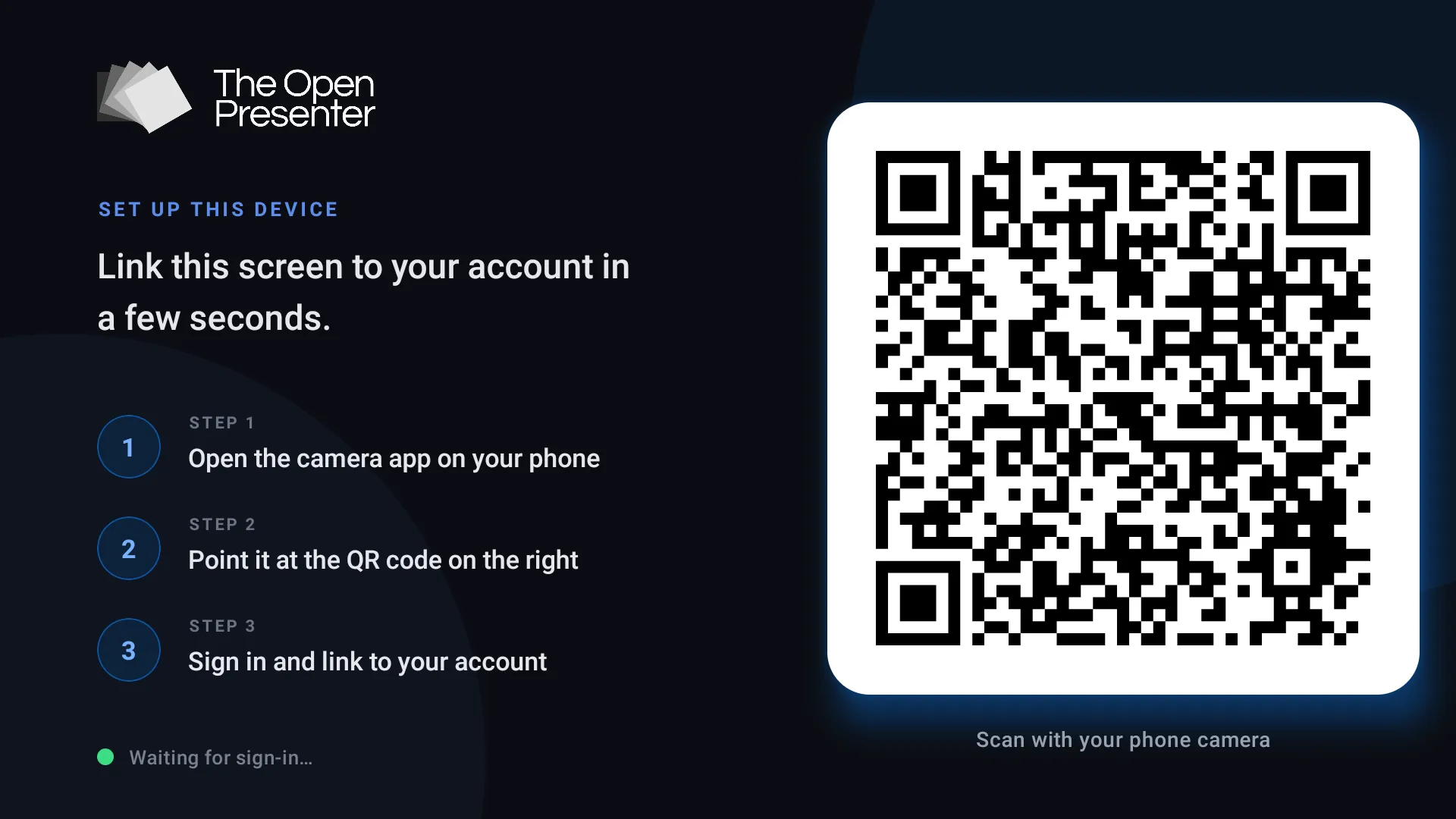
Typing an email and password with a TV remote is painful, so the app
lets you log in by scanning a QR code instead. When you open the app,
the Set up this device screen
shows a QR code on the TV.
Open the camera app on your phone.
Point it at the QR code on the TV and tap the link that appears.
Sign in with the same TheOpenPresenter account you use on your
computer, then confirm to link the device.
The TV shows Waiting for sign-in… and signs in
automatically the moment you finish on your phone.
Tip:
You only have to do this once per device. The TV stays logged in for
next time.
4
Select or create a screen
A screen is TheOpenPresenter's
name for an output display. Assigning this TV to a screen is what lets
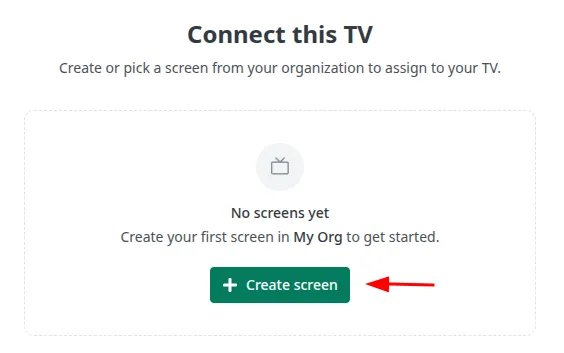
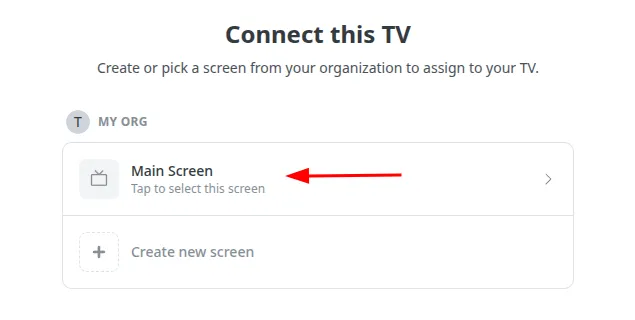
you send your slides to it later. After logging in, the Connect this TV screen asks you
to create or pick a screen from your organization.
If you don't have a screen yet
You'll see No screens yet.
Click Create screen.
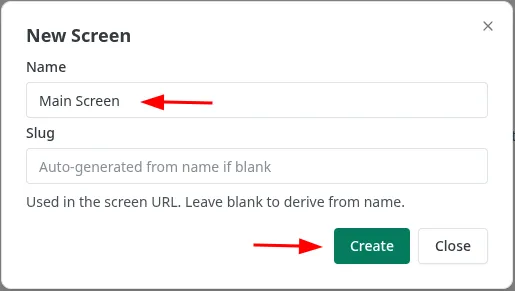
In the New Screen window,
give it a clear Name, for
example Main Screen or Meeting room. You can
leave Slug blank, it's
filled in from the name.
Click Create.
If you already have a screen
Pick it from the list under your organization and tap it to assign
this TV to it. You can also choose Create new screen to add
another one.
Tip:
Give each screen a name that matches where it lives in the room. If you
add a second TV later, clear names make it obvious which output you're
sending to.
Once you assign the screen, your phone opens the Screen Control panel for it,
ready for you to open a project. The TV is now connected and waiting
for input.
5
Present to your TV
With the TV assigned to a screen, there are two easy ways to get your
slides onto it.
From the screen's control panel
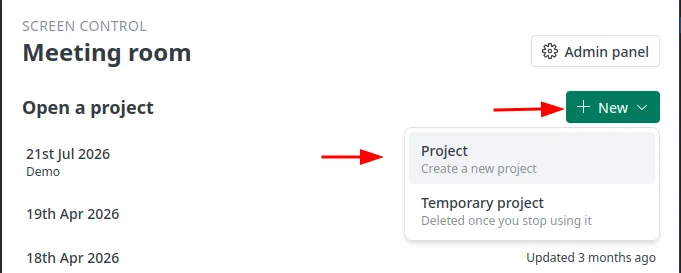
This is the panel you land on right after assigning the screen in
step 4. Under Open a project,
pick an existing project or use New to start one. It appears on
the TV straight away, and you control the slides from your phone.
From a project you already have open
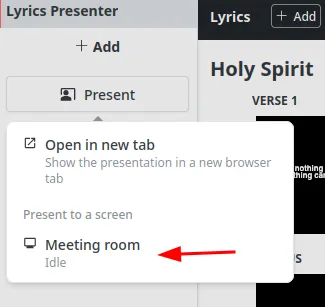
On your computer or phone, open the project and click Present. Under Present to a screen, choose the
screen you assigned to this TV (for example Meeting room). Your slides appear on the TV straight away.
Need the control panel again later?
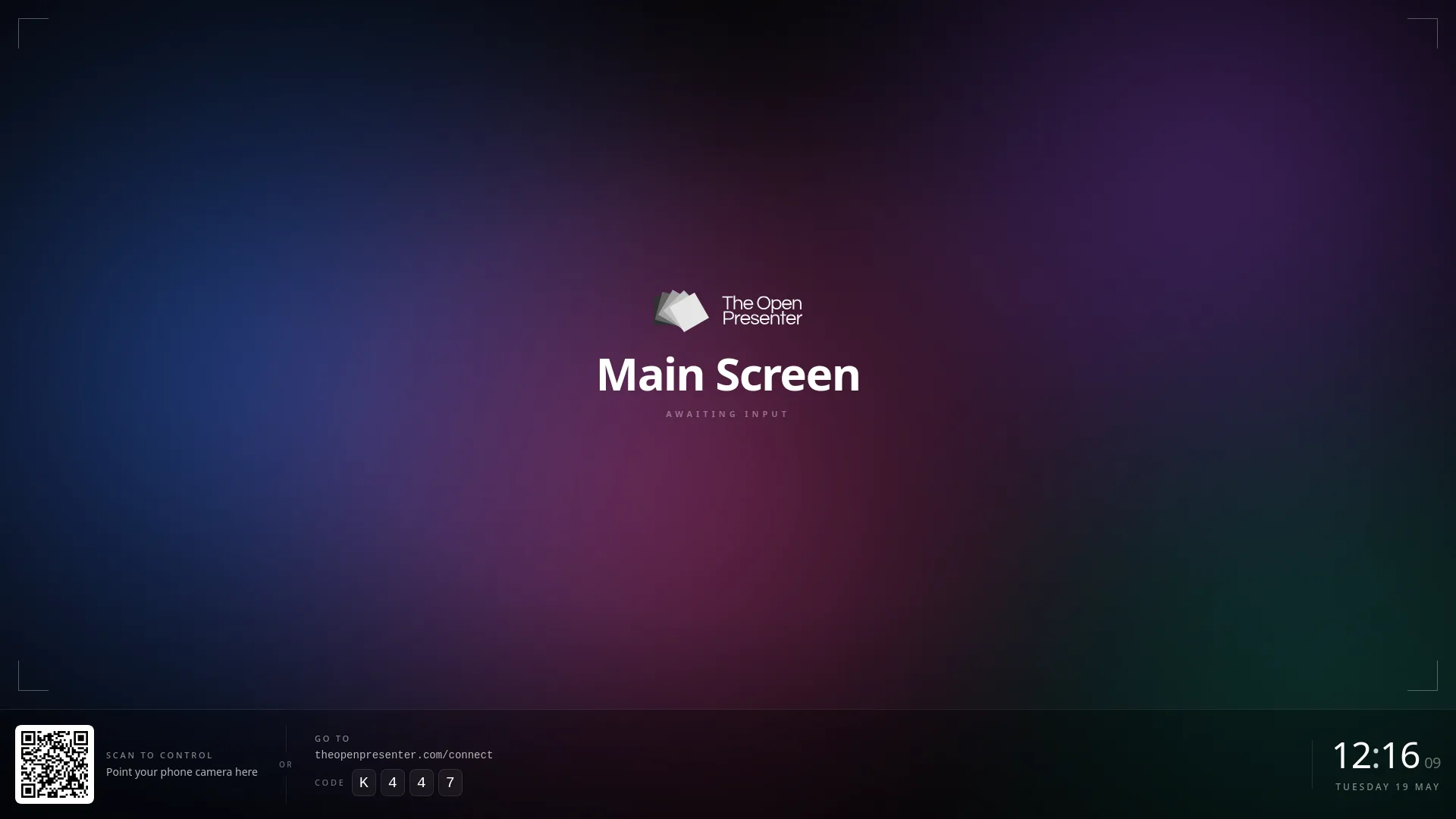
While nothing is being presented, the TV shows an Awaiting input screen with a QR
code. Scan it (or go to theopenpresenter.com/connect and
enter the code shown on the TV) to reopen that screen's control panel
on any phone, no computer needed.
When the service is over, you can tidy up without touching the TV or
its remote.
Unassign the project to
disconnect it from the screen, freeing the TV up for the next project
or the next gathering. The TV goes back to its Awaiting input screen. You can unassign from the Screen Control panel, or
straight from the project you were presenting.
Tip:
Don't want to remember this every week? Open the screen's settings and
turn on auto-unassign, and the
screen frees itself automatically once you're done.
That's it. Next time, just plug the stick in, present to the same
screen, and you're live again.
Just bring the stick
A TV stick, your church Wi-Fi, and a phone in your pocket is all it
takes to run a gathering, no laptop required. New to
TheOpenPresenter? Start with the full walkthrough.