All how-to guides
For churches • 3 min read

How to control TheOpenPresenter from your phone

Don't want to be stuck at the computer? Your phone can become a remote for your presentation, so you can change slides from anywhere in the room. The full-screen output stays on your TV or projector, while you control it from your hand.

Before you start

This guide assumes you already have a church and a project set up. If you don't yet, follow our guide on using the online version for church first, it walks you through registering, creating your church, building a project, adding lyrics, and presenting. This guide only covers the part where you use your phone as the remote.

1

Open your project

On your computer, open the project you want to run, exactly the way you normally would. Get it presenting to your TV or projector as usual. If you're not sure how, our online version guide covers the whole flow. Once it's up and running, you're ready to add your phone as a remote.
2

Scan the QR code

The quickest way to get the project onto your phone is to scan a QR code straight from the editor.

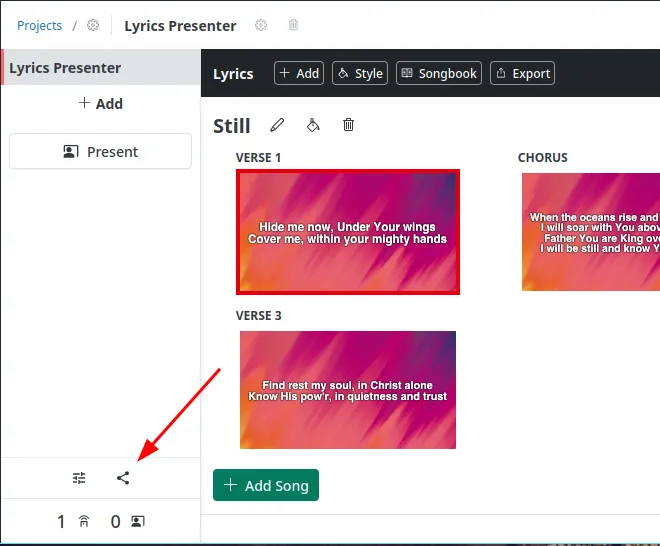
  1. In the editor, click the Share icon near the bottom-left of the screen.
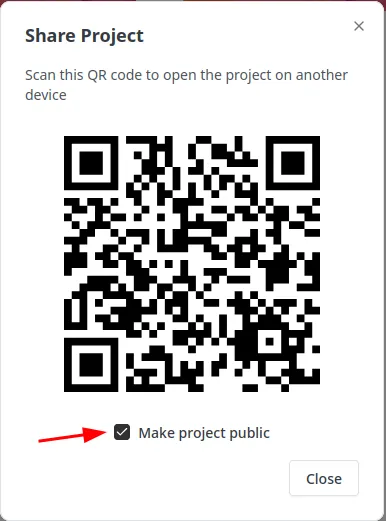
  2. The Share Project window opens with a QR code.
  3. Don't want to log in on your phone, or want to hand the remote to a volunteer who doesn't have an account? Tick Make project public and anyone with the link can open and control it, no login needed.
  4. Point your phone's camera at the QR code and tap the link that appears. The same project opens on your phone.
The Lyrics Presenter editor with a red arrow pointing at the Share icon near the bottom-left of the screen The Share Project window showing a QR code to open the project on another device, with the Make project public checkbox
Tip: Untick Make project public afterwards if you'd rather keep the project private once the service is over.
3

Or open it on your phone directly

The QR code is just a shortcut, there's nothing special about it. Your phone opens TheOpenPresenter in exactly the same way your computer does, so you can skip the QR code entirely if you like.

  1. Open your phone's web browser and go to TheOpenPresenter, then log in with the same account you use on your computer.
  2. Open your church and tap the same project you're running. It opens on your phone, ready to control.
Tip: Because everything lives in the cloud, your phone and your computer stay perfectly in sync. Whatever you do on one shows up on the other instantly.
4

Control from your phone

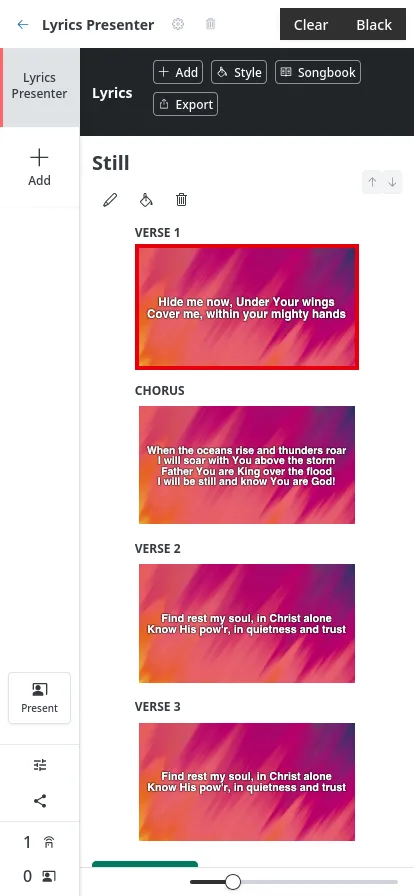
Once the project is open on your phone, it works just like it does on the computer, only in a layout that fits your screen. Tap a song section to send it to the screen, and the congregation sees the words update instantly. Walk around the room, lead from the front, and change slides from wherever you are.

The Lyrics Presenter open on a phone, showing song sections stacked in a narrow mobile layout with the current slide highlighted
Tip: Share the QR code with more than one person so your team can take turns controlling the service from their own phones.

That's it, your phone is the remote

Scan the QR code or open the project on your phone, and control the whole service from anywhere in the room. New to TheOpenPresenter? Start with the full walkthrough.